
How to Create a QR Code Menu (and Go Live)
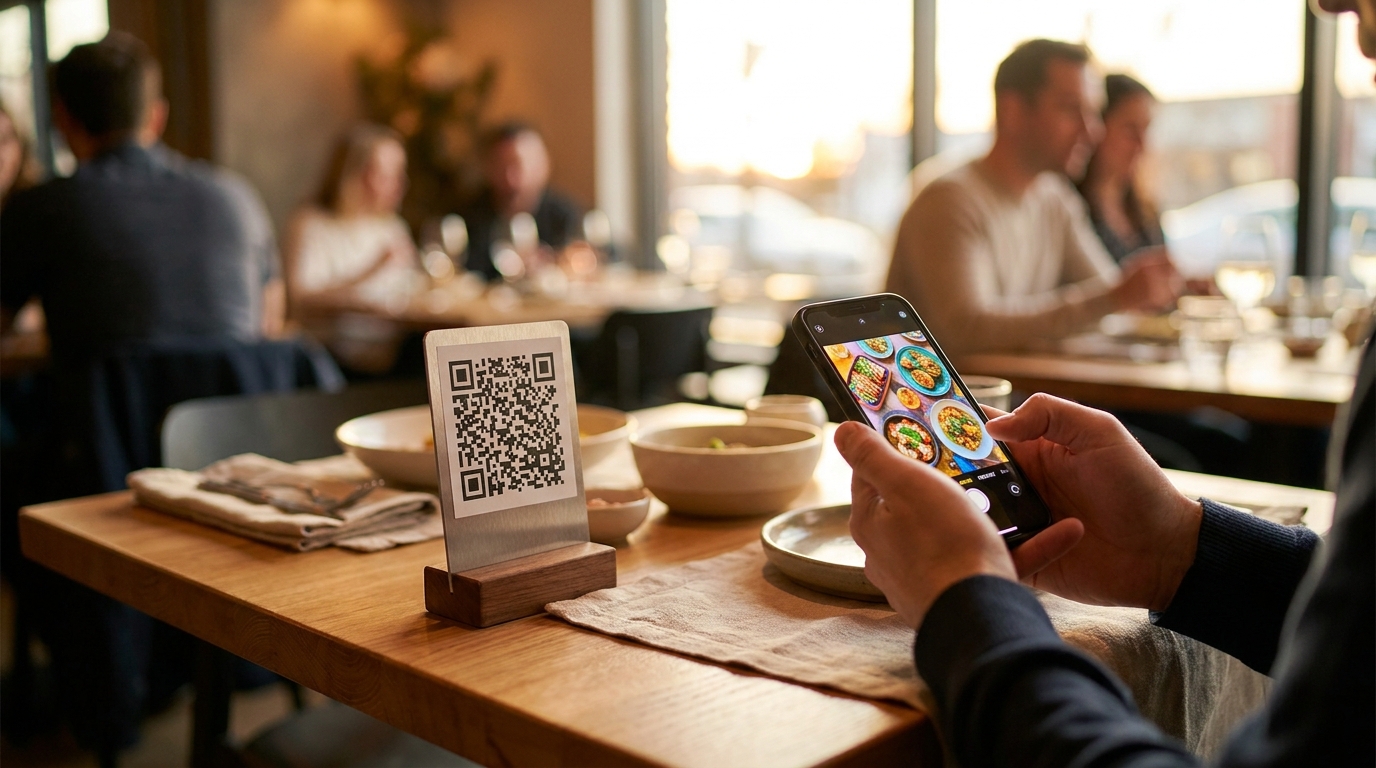
A QR code is just a picture of a web address. Everything that goes wrong with QR menus comes from what address is inside the code — and whether that address can still change after you have printed two hundred table tents.
TL;DR — Key Takeaways
Two kinds of QR menu, and only one survives a price change. A code pointing at a file is frozen the moment it is printed. One pointing at your menu's own address is permanent.
Free generators are where this goes wrong. Their "free dynamic" codes route through a redirect the generator owns — when the trial ends or the service folds, your printed codes stop resolving.
Print the vector file, at least 3 cm wide, pale border intact. A screenshot pasted into a document is the most common reason a code scans on your phone and not your guest's.
The code is only one door. The same address goes in your Instagram bio, your email signature, a flyer, a chat message.
Nothing gets installed. Scanning opens the browser already on the phone: no app, no account, no sign-in, no ordering — guests read, decide, and order with your staff.
Starting from scratch? The code is the last step: how to digitize your restaurant menu covers the ones before it.
Static or dynamic: the distinction nobody explains until it costs you
QR codes are a public standard — nobody licenses the pattern, and the built-in error correction means a coffee ring usually still scans. That is not where restaurants lose money. The money is lost in the address.
A static code points straight at a thing— usually a PDF sitting on a server, .../menu-spring.pdf. The address is baked into the pattern, so when the fish goes up by two euros you upload a new file, get a new address, generate a new code, and reprint. Forty table tents, the window decal, the flyers. Every time.
A "dynamic" code from a generator points at the generator. The pattern encodes something like qr-svc.example/x7Fq2, which forwards to wherever you last pointed it. The catch: you have put a company in the middle of the chain between your guest and your menu.
The third option is the one restaurants should want. Point the code at your menu's own permanent address and the redirect problem disappears, because there is no redirect. With Intermenu the address looks like intermenu.io/menu/your-restaurant, and editing the menu does not change it. Raise a price, 86 the sea bass, switch on a fifth language — the code on the table is still correct, and changes appear on the guest's next load. The print run only happens once.
Why the free generator is a trap
A free static generator is fine if what you feed it is an address you control and that will still work in three years — the pattern it draws is the same pattern anyone else draws. The trap is the free dynamic code, and it shows up three ways.
The trial expires. Plenty of generators give away dynamic codes for two weeks or a few hundred scans, then park the link behind an upsell page. Your table tents now advertise someone else.
The redirect dies. Short-link and QR services get acquired, shut down, or let a domain lapse. Every code printed through them stops resolving at once, and the only fix is reprinting.
The middle of the chain is throttled. Scan caps, slow redirects, an ad page between guest and menu. A guest who waits four seconds has put the phone down.
The rule: put only a permanent address you control inside a printed code. If a service has to stay alive and stay paid for your code to work, you have printed a subscription onto four hundred pieces of card.
Getting the print right
This is what separates a code that scans first time from one that makes a guest stand up and angle their phone. It is all mechanical.
Download the vector file, not a screenshot. Intermenu's "My QR & live menu" page has a Download for print button giving you a sharp vector file that scales to any size, plus a print-ready sheet. A screenshot gets resampled and the fine squares blur together.
Print it at least 3 cm wide. That is the minimum for a code a guest holds a phone over at a table. Further away, the rough rule is a tenth of the scanning distance, so a window decal read from two meters belongs closer to 20 cm.
Keep the pale border. The quiet zone around the pattern is what the camera uses to find the code's edges. Do not crop it, run text into it, or lay the code over a photo.
Dark on light, matte if you can. Gloss under a downlight throws glare back at the camera, which is why some codes fail at dinner and work at lunch. Never invert the colors.
Don't decorate it. Stretching it, rounding the modules, or dropping a logo in the middle all eat into the error correction the code relies on.
Test the proof on three phones, one of them old, in the light the code will live in.
Test the proof before you print two hundred
The printer's proof will scan on your desk, in office light, on the newest phone in the building — none of which is the condition it has to survive. Run this once, with the proof in hand:
One iPhone and one Android, native camera— not a scanner app, which is more forgiving than the camera your guests will use.
Test in the dining room, not the office. The dim corner booth and the terrace at midday are the hard cases: one has almost no light, the other too much of it.
Hold the phone the way a seated guest holds it— leaning back, one hand, no particular care.
Borrow a cracked screen. Scratched glass scatters light, and it's the usual reason a code fails for one guest and works for everyone else.
Turn off Wi-Fi and try one bar of mobile data. That's what the basement four-top gets on a Friday.
Read the result as a guest would— on the phone, scrolling, not on a desktop where every section fits on one screen.
Hand it to somebody who has never seen it and don't help. Wherever they hesitate is your sign wording, section order or placement telling you something.
Picking the object the code lives on
The pattern is identical everywhere; what it is printed on is not.
Table tents stand up, so the phone is held square instead of angled over a flat card. Print both faces.
Stickers survive a thousand wipes and never walk off, but they lie flat and catch the light above them.
A loose card is cheapest to reprint and easiest to lose — right while you're still changing the wording.
The code on the printed menu is the least intrusive: nobody needs telling what the square is for.
Lamination, matte only. It wipes clean and lasts a season, and gloss mirrors the ceiling light straight into the camera. Anyone who has photographed a laminated menu knows the problem; this is it in reverse.
At the height a seated guest reaches without standing up or moving a water glass.
A weatherproofed version for the terrace. Rain, sun and a wiped-down table finish plain card in a week, and at midday that's the brightest surface you own.
Where the code should actually go
Most restaurants put a code on the table and stop. The table is the obvious placement and the least interesting one.
Table tents— both faces, so nobody turns it around, within reach of a seated guest.
The printed menu itself. The card gives the guest the food; the code gives them allergens, diets and their own language.
The window or door. People decide whether to come in from the sidewalk, and a code beside the opening hours lets them read the menu first.
The back of the check presenter. Scanned at the end of a meal, it becomes what they look at tomorrow.
Flyers, takeaway bags and delivery boxes. A code on a box is a menu in someone's kitchen.
The A-board or counter— in a café, the queue is when people read.
Anything printed gets a code. Anything digital gets the link.
The window code does a completely different job. It is read by somebody on the sidewalk deciding whether to come in, very often at ten at night with the lights off. That is exactly when the live open/closed badge earns its place: "Opens 09:00" answers the question they came to the window with, and the menu answers the one they were about to ask next. Print that one bigger, at standing eye height rather than by the door handle.
Some codes should leave the building. A flyer, the tape on a delivery bag, a business card, the banner at the food festival in June. All carry the same permanent address, so none of them expires.
One code, or one per menu?
Most restaurants ask this about the drinks list, and for most of them the answer is one code for everything.
Three codes for food, drinks and wine move work from the software onto the guest. They pick a square before they've seen a dish, and the thing they wanted — a red to go with the lamb — is across the table. One menu with sections handles it better: search and the section buttons do the navigating, so the wine list is one tap from the top of the food and a guest typing "riesling" gets there without knowing which card it lived on.
Two honest exceptions:
A bar where the drinks card is the menu. That needs the drinks section dragged to the top of the sections list, not a second code.
Two menus that share nothing— a hotel restaurant and a room-service card with no dishes, prices or audience in common. On Intermenu that shape is two locations, each with its own menu, link and QR code.
Undecided? Start with one.
The link works everywhere the code can't
The address inside the code is plain text, which makes it more useful than the code.
Paste it into your Instagram bio, your email signature, the button on your website, your review-site profiles, or a reply to somebody asking whether you do anything gluten-free. No camera involved. The cover image on your restaurant profile doubles as the preview picture when the link is shared in a chat, so set one first.
The same page also gets found without anybody scanning anything — it carries structured restaurant data that search engines read, and published menus go into the sitemap: get your restaurant menu found online.
You can tell the two apart afterward. The insights record where guests came from — a QR scan, a direct link, another website, or a tagged campaign link — so you can see whether the window decal earns its place: what a digital menu tells you that paper can't.
Which door your guests actually came through
Three of those four arrival types cost you nothing. The fourth is worth five minutes, because it separates your own channels from each other. A campaign link is the same menu address with a label on the end: one label for your Instagram bio, another for the flyer, a third for the button on your website, and they stop being one pile marked "direct". Tagging doesn't split your search visibility either — campaign links point search engines back to the menu's main address.
Read the menu views screen over 7, 30 or 90 days and the comparison gets blunt: the flyer drop that cost real money against the bio link that cost nothing, or the window decal pulling scans while the table tents barely move — a placement problem, not a code problem.
What the guest gets after the scan
The camera opens the browser already on the phone. Nothing installs, no account is created, nobody signs in. The menu loads with your cover photo, logo and name, and a live open/closed badge built from your opening hours — "Open · closes 22:00", "Opens 09:00", or "Closed". It handles hours past midnight and refreshes itself while the page sits open on the table.
A pinned bar carries search and, when you have two or more sections, buttons that jump down the page. The search covers dish names, descriptions and option names, so a guest typing "oat milk" finds the coffee that offers it as an extra; matches are highlighted and the page scrolls to the first.
Then the filter. A guest picks one diet and hides any number of allergens, and the menu updates immediately. Dishes nobody has tagged are not passed off as safe — they sit in a clearly marked "Allergen info not provided" group with a note to check with staff. A language switcher sits in the same header for every language you have switched on.
What the menu does not do is take an order. Guests read, decide, and order with your staff.
Open the live demo menu on your phone rather than your laptop — thirty seconds with it explains more than this section does.
About the QR menu backlash
Some guests will roll their eyes at the code, and they earned the right to. The pandemic produced an enormous number of bad QR menus, and the complaints about them were specific.
Almost all reduce to three things. The code led to a PDF, so a page-sized document landed on a palm-sized screen and the guest spent a minute pinch-zooming around a wine list. Or it led nowhere — a replaced file, a lapsed redirect, a dead link at the table. Or the guest asked for paper and was told there wasn't any, which is the only one of the three that is purely a hospitality failure.
None of that is inherent to a square of black and white. A code pointing at a page built for a phone, at an address that can't break, in a room where anybody who wants paper gets paper, produces none of those complaints.
If your code still points at a PDF you exported three summers ago, the eye-roll is aimed at you, not at QR codes.
The multi-location gotcha
Read this before you print anything. A single restaurant's menu lives at intermenu.io/menu/restaurant-name. Once your organization holds more than one location, menus move to intermenu.io/menu/organization-name/location-name. The address form changes.
Codes already printed with the short address keep working. A guest scanning an old table tent is forwarded automatically to that location's current address, including the language they picked. Opening a second site does not invalidate your first site's print run. Still, if a second location is coming this year, print per location and order that batch once its address is settled.
Accessibility and table etiquette
A QR menu is a convenience, and the moment it becomes an obstacle it has cost you a table.
Keep a few printed menus behind the host stand. Some guests cannot read a phone screen comfortably, some have a dead battery, some just do not want to. Handing one over is routine, not a favor.
Put the code within reach of a seated guest. If somebody has to stand up or lean across a four-top, it is in the wrong place.
Do not ask anyone to install anything. There is nothing to install, so the sign only needs to say what is behind the code.
Give it light. A code on a dark table in a dim room is a different object than the same code in your office.
Let staff read it aloud. A server reading the allergen line off their own phone is a perfectly good outcome.
What to do when a guest can't scan
It will happen on your busiest Saturday. The list is longer than it looks: a phone at two percent, an older guest who finds the screen hard to read, somebody traveling without a data plan. None of these is an edge case.
Hand over paper without a speech. A printed menu on request costs a few sheets a month and buys back the table. This is a hospitality decision, not a technology one — you don't have to win the argument about QR codes to serve somebody dinner.
Teach staff to say the address out loud. intermenu.io/menu/your-restaurant is short enough to say across a table — the fastest fix when the camera is the problem and the phone isn't.
Keep a card at the host stand with the address printed large and no code on it, for the guest whose camera won't focus and the one who doesn't scan strange squares.
Never make it the guest's problem."It should work" is not a response. Whoever is standing there fixes it in thirty seconds, with paper if that's what it takes.
Before you print 200 of them
Ten minutes on this list is cheaper than a second print run.
The menu is published and readable— prices on everything, no half-finished sections.
The address is your own permanent one, not a generator's redirect.
You downloaded the vector file, not a screenshot.
The code is at least 3 cm wide, wider for distance, pale border untouched, nothing printed over it.
Your opening hours are set, so the open/closed badge tells the truth.
Your allergen and diet tags are in, because that is what a phone menu is for.
Your second language clears the threshold— a language is only offered once at least half your orderable dishes have a translated name.
The sign says what it is— "Our menu, allergens and daily specials" beats a bare square.
Get your QR code free with Intermenu
Intermenu gives every menu a permanent address and a QR code on one page: the live link with copy and open buttons, a vector file built for print, a print-ready sheet, and how many guests opened your menu in the last week.
Print it once. Change prices, mark a dish sold out, add a language — the code on the table still points at the right menu. One location, 40 dishes and two languages are free, no card and no time limit; the pricing page has the rest.
Create your QR code menu free with Intermenu →
Frequently Asked Questions
How do I create a QR code for my restaurant menu?
Publish the menu at a permanent web address, then generate a code pointing at it. In Intermenu the code is made for you, with a download built for print.
Do I have to reprint the QR code when prices change?
No, as long as the code points at your menu's address rather than at a file. The code stays the same and the menu behind it changes; guests see the new price on their next load.
Do guests need an app to scan a QR menu?
No. The camera opens the browser already on the phone — no app, no account, no sign-in, nothing installed.
Are free QR code generators safe for a restaurant menu?
A static code pointing at an address you control is fine. Be careful with "free dynamic" codes, which route through the generator's redirect — when the trial ends or the service shuts down, your printed codes stop resolving.
Can guests order through the QR code menu?
No. The menu is for reading and deciding — photos, allergens, diets, sizes and extras — and guests order with your staff as usual.
Do I need separate QR codes for food and drinks?
Usually not — search and the section buttons do the navigating. Separate codes earn their keep only when the two menus share nothing, like a hotel restaurant and a room-service card.
How do I know my QR code will scan in my dining room?
Test the printed proof, not the file on screen: an iPhone and an Android, the native camera, the dim corner and the bright terrace, held at the distance a seated guest really holds a phone.
What happens to my printed codes if I open a second location?
They keep working. Menus move to intermenu.io/menu/organization-name/location-name once an organization has more than one location, and guests scanning an old code are forwarded automatically, including the language they chose.