
How to Create a Digital Menu: 10 Steps to a QR Menu (2026)
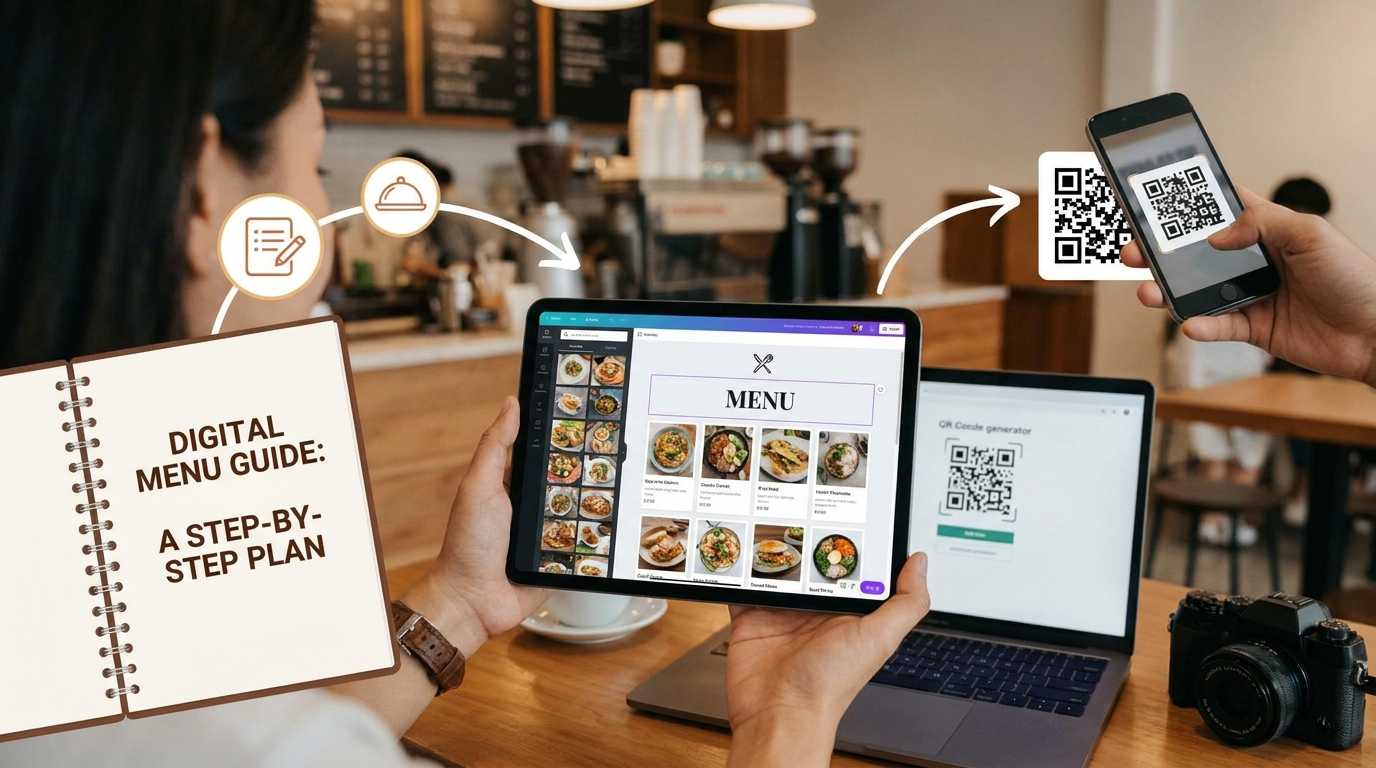
A digital menu is the one piece of marketing every guest actually reads, and the only one you can fix from your phone between covers. Here is the exact order of operations I use to take a restaurant from a paper menu to a fast, photo-rich, multilingual QR menu in an afternoon — and the small decisions at each step that separate a menu that just works from one that quietly sells more.
TL;DR — Key Takeaways
Start by digitizing, not designing. Get your existing menu into the system first (a photo or a spreadsheet), then refine — it is far faster than typing 90 items by hand.
Structure beats decoration. Clear categories of 5–7 items, in the right order, do more for sales than any color scheme.
Three things lift orders: a good description, a real photo, and option groups that let guests add on. Build every item with those in mind.
Tag once, sell everywhere. Allergen and diet tags plus translation turn one menu into a safe, readable menu for every guest who walks in.
Finish with a dynamic QR code. One code on the table, updated in seconds — no reprints when a price changes or a dish sells out.
What "a digital menu" actually means in 2026
A digital menu is your menu hosted online and opened on a guest's phone, usually by scanning a QR code on the table. That sounds simple, but the version that helps your business is not a PDF photographed and uploaded — it is a structured, mobile-first menu where every dish is its own record with a price, a description, a photo, allergen data, and language variants.
That structure is the whole point. A PDF is a picture; guests pinch and zoom and give up. A structured digital menu can be filtered ("show me vegetarian"), translated into the guest's language, searched, and updated the instant a price changes. It also gives you something a paper menu never could: data on which dishes people actually look at and order.
The rest of this guide walks the build in the order that works, with a link to a deeper how-to for each step. You do not need to do all of it on day one. Get a working menu live first, then layer on photos, translations, and options over your first week.
Step 1 — Digitize your existing menu
Do not start with a blank screen. Whatever you have — a printed menu, a PDF from your designer, an old spreadsheet — is your fastest path to a first draft. Modern menu platforms can read a clear photo or PDF of your menu and pull out the items, categories, and prices for you to review; if you keep your menu in Excel, a template import is even cleaner.
The trick is to treat the import as a draft, not the finished menu. Photograph each page straight and well-lit, let the system extract the rows, then read every line for price typos and split-up names before you commit. Twenty minutes of review on an imported menu beats two hours of manual entry. See the full walkthrough in how to digitize your restaurant menu.
Step 2 — Organize categories and items
Once the items exist, get the structure right, because structure is what guests navigate. Group dishes into clear categories — Starters, Mains, Sides, Drinks, Desserts — and keep each category to roughly5–7 items. More than that triggers decision fatigue and, counterintuitively, suppresses orders.
Order matters too. On a digital menu the "golden triangle" of a paper page becomes the top of each category: the first one or two items in a section get the most attention, so that is where your high-margin signatures belong, not your cheapest filler. Set the category order to match how people eat (you rarely lead with desserts) and the item order to match what you want to sell. The mechanics and the merchandising live in how to organize a menu, and the profit side in our menu engineering guide.
Step 3 — Write descriptions that sell
A name tells a guest what a dish is; a description makes them want it. You do not need a paragraph — one specific, sensory line does the work: where it is from, the one ingredient that matters, how it is cooked. "Creamy burrata with Puglian olive oil and torn basil" earns its place; "tomato salad" does not.
Good descriptions also travel better. Concrete, well-written copy translates more cleanly into other languages and gives an AI translator something real to work with. Write them once, properly, and they pay off across every language your menu supports. The formula, with before-and-after examples, is in how to write menu descriptions that sell.
Step 4 — Add photos (shoot or generate)
Photos are the single biggest on-menu lever for conversion: a good image on a dish lifts orders of that dish meaningfully, and the effect is strongest on items guests do not recognize. You do not have to photograph all ninety — start with your signatures, your highest-margin plates, and anything with an unfamiliar name.
If a photo shoot is not in the budget, AI food photography can generate brand-consistent images of your dishes at near-zero marginal cost. The rule either way is consistency: the same angle, light, and framing across the menu so the page looks designed, not collaged. How to upload, generate, and keep them consistent is covered in how to add photos to your menu, with the strategy in our AI food photography playbook.
Step 5 — Tag allergens and dietary info
This is where digital menus genuinely beat paper. Tag each dish with the allergens it contains (the EU mandates 14, the US 9) and the diets it fits — vegan, vegetarian, halal, keto. Done as structured data rather than a footnote, guests can filter the menu to what is safe for them, and your disclosure stays correct even after the menu is translated.
It also protects you and your staff: fewer "can the kitchen check if this has nuts?" interruptions mid-service, and a clear, consistent record of what each dish contains. Walk through tagging and guest filtering in how to add allergens and dietary tags.
Step 6 — Build modifiers and option groups
Most real menus are not just a flat list — a dish comes in sizes, with add-ons, or a choice of side. Option groups capture that, and they are quietly one of your best upsell tools. A "choose one" group handles a required choice like portion size; a "choose many" group offers paid extras like an added protein or premium topping.
Set them up properly and a €12 burrata becomes a €16 burrata with grilled chicken, chosen by the guest with no upsell pressure on your staff. Keep the choices short and the price changes honest. The how-to, including when to reuse a group across dishes, is in how to add modifiers and options.
Step 7 — Translate for every guest
If tourists, students, or international residents walk through your door, a translated menu is the difference between a confident order and a hesitant one. A hospitality-trained translation keeps dish names intact (a guest still orders "Shish Tavuk") while localizing the descriptions and the allergen labels so disclosure is correct in every language.
The workflow is straightforward: pick your target languages, run the translation, then skim it — you stay in control of the final wording. Doing it inside the menu (rather than maintaining separate translated PDFs) means a price change updates every language at once. See how to make a multilingual menu and the deeper strategy in our multilingual restaurant menus guide.
Step 8 — Generate your QR code and go live
Now connect the menu to the table. A dynamic QR code points to your live menu, so the same printed code keeps working forever — you change prices, 86 a sold-out dish, or swap in a seasonal special, and every future scan shows the update with no reprint. (A static QR baked into a PDF cannot do this, which is why it is worth avoiding.)
Print the code at a sensible size with good contrast, test it on both iPhone and Android, and place it where hands naturally fall — table tents, the bottom of the bill, the window for passers-by. The full going-live checklist is in how to create a QR code menu, and the broader case in our QR code menus guide.
Step 9 — Read the analytics and improve
A paper menu is a guess; a digital menu tells you what happened. Once guests are scanning, you can see which dishes get viewed, which views turn into orders, what languages your guests actually use, and when your peaks hit. That turns menu changes from opinion into evidence.
The pattern is simple: find the dish with lots of views but few orders (usually a price or description problem), and the hidden gem with few views but a high order rate (move it up). Small, data-led tweaks compound. How to read each report and act on it is in how to use menu analytics to sell more.
Step 10 — Scale to more locations
If you run more than one site, you do not want to rebuild the menu each time. Manage every branch from one account, each with its own currency, language set, and prices, and clone a menu to a new opening so you are editing instead of starting over. Group-level billing keeps it all in one place. The setup is covered in how to manage multiple branches.
A sample digital menu structure
Here is what a clean, well-ordered digital menu looks like for a casual grill — categories first, signatures at the top of each:
STARTERS— Hummus · Baba Ghanoush · Halloumi · Tabbouleh · Fattoush
FROM THE GRILL— Mixed Grill (for two) · Lamb Kebab · Shish Tavuk · Kofta
PLATES— Chicken Shawarma · Falafel Plate · Crispy Chicken
SIDES— Fries · Arabic Bread · Garlic Sauce · Pickles
DRINKS— Ayran · Mint Lemonade · Soft Drinks · Tea & Coffee
Five tight categories, signature items leading each, sides and drinks (your highest-margin add-ons) easy to find. That is the whole game.
How long does it take to create a digital menu?
A working menu — categories, items, and prices, live behind a QR code — is genuinely an afternoon's work if you import rather than type. Photos, descriptions, and translations are best treated as a first-week project rather than a launch blocker: get the menu live, then improve it in passes. Because everything updates instantly, there is no penalty for shipping a good version today and a great version next week.
Common digital menu mistakes
Uploading a PDF and calling it done. It is unreadable on a phone and gives you none of the filtering, translation, or data that make digital worth it.
Too many items per category. More choice reads as generosity but measures as fewer orders. Trim to your best 5–7.
A static QR code. If the code lives inside a PDF, you cannot update the menu without reprinting — you have rebuilt the paper problem.
Skipping allergen tags. It is the one area where you carry real liability, and the easiest to get right with structured data.
Launching, then never looking at analytics. The data is the payoff; ignoring it wastes the best advantage a digital menu has.
Build your digital menu free with Intermenu
Intermenu turns any menu into a live, mobile-first QR menu: import your existing menu in minutes, tag every dish for diet and allergens, generate or upload photos, translate into 15 languages, and update prices in seconds — across one location or fifty. It is the platform this whole guide is written for, and you can start free.
Build your digital menu free with Intermenu →
Frequently Asked Questions
How do I create a digital menu for my restaurant?
Choose a digital menu platform, import or enter your items into clear categories, add prices, descriptions, photos, and allergen tags, then generate a QR code that links to the live menu. With an import, a basic version can be live the same afternoon.
What is the difference between a digital menu and a PDF menu?
A PDF is a static image of a menu — guests must zoom, and you reprint to change it. A digital menu is structured data, so it is mobile-friendly, filterable, translatable, instantly updatable, and able to show you view and order analytics.
Do I need a QR code for a digital menu?
A QR code is the most common way guests open a digital menu at the table, but the menu also works as a link you can share on Google, social media, or your website. Use a dynamic QR code so the same printed code keeps working as you update the menu.
Can I make a digital menu for free?
Yes — most platforms, including Intermenu, have a free tier that is enough to build and publish a real menu. Paid plans add capacity (more items, branches, and languages) and AI features like photo generation.
How do I update a digital menu?
You edit the item in your dashboard and save; the change appears on the next scan. There is no reprint, which is why dynamic QR menus are so well suited to seasonal changes, daily specials, and selling out of a dish mid-service.
How many items should a digital menu have?
Aim for about 5–7 items per category. It is enough to feel complete without overwhelming guests, and it keeps your kitchen focused on dishes you can execute consistently.