
How to Add Modifiers & Options to Menu Items
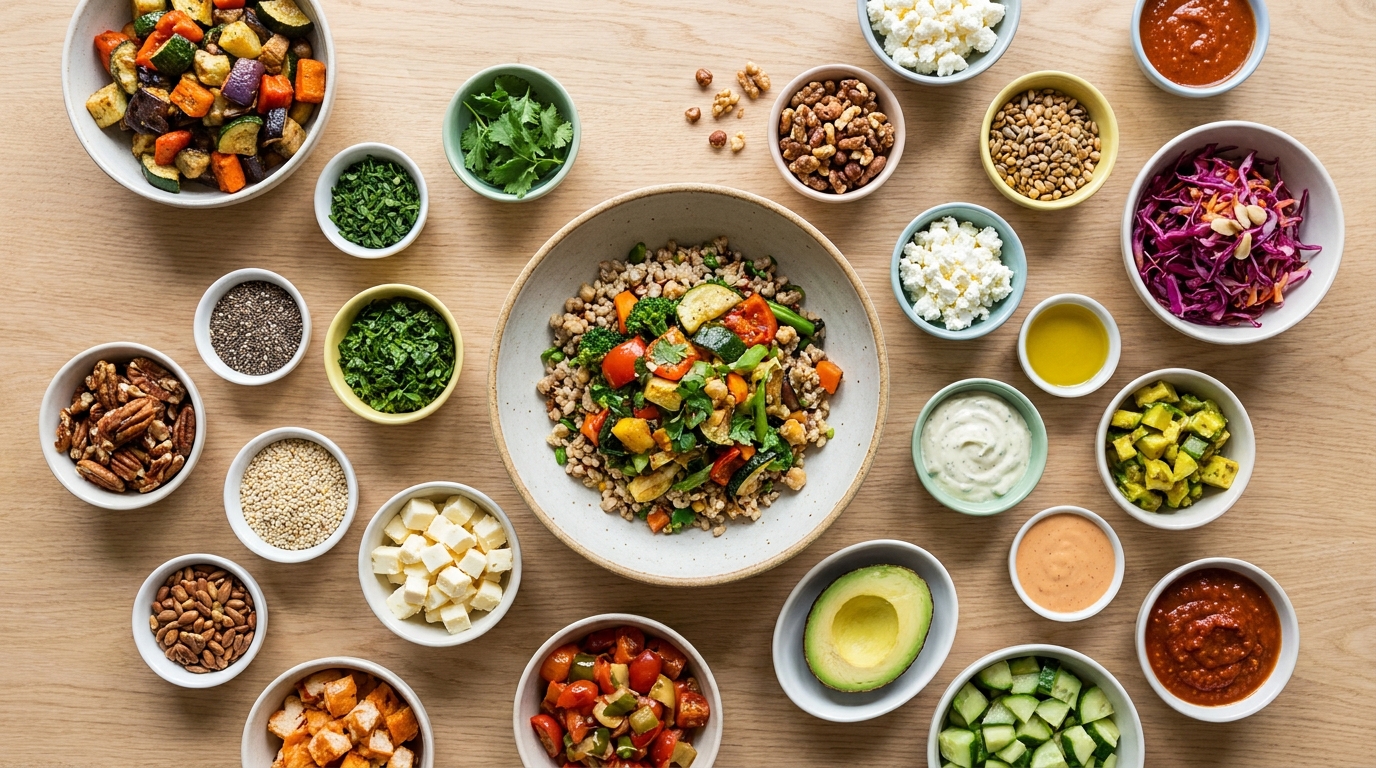
Almost nothing on a menu is one fixed thing. The pizza comes in three sizes, the flat white comes with oat milk, the burger comes with a choice of side. The industry calls these modifiers. Set them up well and your menu gets shorter, clearer and quietly better at selling the extra.
TL;DR — Key Takeaways
What the industry calls modifiers, Intermenu calls Choices & extras. A group is a question a dish asks ("Size", "Pick a side", "Extras"); the options are the answers.
There are only two shapes.Pick one for alternatives, where each option usually sets the price (Small €8, Medium €10, Large €12). Pick any number for extras, where each option usually adds (Extra cheese +€1.50).
Build each group once. Groups live in a restaurant-wide library. Attach "Size" to every pizza, and when you change a price in the library, every dish using it follows.
Extras carry their own allergens. Extra cheese adds milk, and the guest sees that before asking for it.
Deleting a group is permanent; detaching it is harmless. Groups and options don't go to Recently deleted. Removing a group from one dish never touches the library.
What the industry calls modifiers
Walk into any restaurant software conversation and you'll hear "modifiers": the sizes, sides, milks, doneness levels and toppings that turn one dish into the version a guest actually wants. It's the word owners search for, so this article uses it.
In Intermenu the same idea is called Choices & extras. A group is a question the dish asks; each option is an answer with a price attached.
On a phone, the choices sit inside the dish itself, with their prices and allergens, in the guest's language. If you haven't built the rest of the menu yet, start with the guide to creating a digital menu and come back here when you reach the third step of adding a dish — Basics, then Allergens & photo, then Choices & extras.
The two shapes a group can take
Pick one — alternatives
A Pick one group offers options that exclude each other. You can't have a pizza that is small and large at once, or a coffee with whole milk and oat milk.
Because the options replace each other, each one usually sets the price rather than adding to it: Small €8, Medium €10, Large €12.
Typical Pick one groups:
Size— Small, Medium, Large; 0.3 l or 0.5 l; half portion or full.
Milk— whole, oat, soy, lactose-free.
Side— fries, salad or roast potatoes with a main.
Doneness— rare, medium, well done, where the price doesn't change at all.
Pick any number — extras
A Pick any number group offers options the guest can stack. Extra mozzarella and anchovies and rocket, if that's what they want.
Here each option usually adds to the dish price: Extra cheese +€1.50, Bacon +€2.00, Extra shot +€0.60. The dish stands on its own without any of them, and every extra is a small, voluntary step up.
Typical Pick any number groups:
Extra toppings on pizza, burgers and bowls.
Add a protein to a salad or grain bowl.
Syrups and shots for coffee.
When you're not sure which shape it is
Ask one question: can a guest sensibly have two of these at once? If no, it's Pick one. If yes, it's Pick any number.
Sides are the usual trap. "Choose a side" with a main is Pick one; "Add a side" is Pick any number. Same fries, different question, different group.
Build it once: the restaurant-wide library
Choice groups don't belong to a single dish. They live in a restaurant-wide library. You build "Size" once, with its three options and prices, and attach it to every pizza. You build "Milk" once and attach it to every espresso drink. The group is one thing, used in many places.
The payoff arrives the first time a price moves. Mozzarella goes up, you decide the large pizza needs to be fifty cents more, and you change that one option in the library. Every dish using the group follows. Twelve pizzas, one edit. Hand-typed prices on each pizza would mean twelve edits, and someone always misses the calzone.
Attach from the library, or build inline
You can work in either direction. When you already have the group, attach it to the dish from the library. When you're adding a new dish and realize it needs a group that doesn't exist yet, build it inline, right there in the dish, and it becomes part of the library for the next dish.
Per dish: show or hide, and in what order
A shared group doesn't force every dish to look the same. Per dish, you decide whether the group is shown and in what order the groups appear.
That covers the real exceptions. Your Extra toppings group is attached to every pizza, but you hide it on the one pizza the chef won't let anyone touch. On pizzas, Size comes first and Extras second, because size is the decision that shapes everything after it. On a coffee, Milk comes before Syrups.
What the guest actually sees
On the dish row, a dish with sizes or extras carries a small badge, so a guest scrolling the section knows there's a choice to make before opening it.
The price shown depends on the group. When a dish has a required choice group, the row shows a starting price —"From €9.00"— rather than pretending the dish has one fixed price.
Inside the dish sheet, each group is marked Required or Optional, and every option shows its price. Required is for the question the kitchen needs answered — which size, which milk, which side. Optional is for everything the dish is complete without.
Search reaches the options. The guest search covers dish names, descriptions and option names. A guest typing "oat milk" finds the coffees that offer it as an option, with the match highlighted.
One thing to be clear about, because the word "modifier" comes from till systems: the menu is for reading and deciding, not for ordering. Guests see the choices and their prices, then order with your staff as usual. The value is that they arrive at the order already knowing what they want, and what it costs.
Extras carry their own allergens
An extra is food. Extra cheese contains milk. Anchovies are fish. A garlic mayo dip contains egg. If a guest has hidden milk in the allergen filter and the margherita carries only the base pizza's allergens, the extra mozzarella next to it is a quiet trap.
So each option carries its own allergens, and they're listed on the dish sheet next to the option. A guest can see that adding cheese adds milk before they ask for it. Tag them when you build the group; since it lives in the library, you tag the extra mozzarella once for every pizza.
The same honesty rules apply here as everywhere else on the menu. The labels come from you, they may be incomplete, traces are possible, and every dish sheet asks guests with an allergy to speak to staff. The filter is an aid to that conversation, not a replacement for it. The full picture, including the 14 EU allergens and what the filter does with untagged dishes, is in allergen labeling on a digital menu.
When you run out of one topping
Friday, 8:40 pm, and the truffle is gone.
Each option has its own on-menu switch. Take the truffle oil down and it disappears from every dish that offers it, without touching the dishes themselves. The pizzas stay on the menu, the other extras stay available, and when the delivery arrives you switch it back.
It's the sold-out tap, for a single option.
A worked example: a pizzeria and its coffee bar
Here's a neighborhood pizzeria with a small coffee bar, built the way I'd build it. Twelve pizzas and eight coffees, but only six groups in the library:
SIZE— Pick one · Required · Small (26 cm) €9.00 · Medium (30 cm) €11.00 · Large (34 cm) €13.00
CRUST— Pick one · Optional · Classic · Thin · Stuffed crust +€2.50 (contains milk)
EXTRA TOPPINGS— Pick any number · Optional · Extra mozzarella +€1.50 (milk) · Anchovies +€1.50 (fish) · Salami +€2.00 · Rocket +€1.00 · Truffle oil +€2.00
DIPS— Pick any number · Optional · Garlic mayo +€1.00 (eggs) · Chili oil +€0.80
MILK— Pick one · Required · Whole milk (milk) · Oat milk +€0.50 (check the carton for gluten) · Soy milk +€0.50 (soybeans) · Lactose-free milk +€0.40 (milk)
COFFEE EXTRAS— Pick any number · Optional · Extra shot +€0.60 · Vanilla syrup +€0.50 · Hazelnut syrup +€0.50 (check the label for nuts)
The allergens above are examples; tag yours from your own suppliers' labels. Now the attachments. Size, Crust, Extra toppings and Dips go on all twelve pizzas, with Extra toppings hidden on the marinara because the chef wants it served as written. The calzone gets Size and Dips only. Milk and Coffee extras go on the flat white, latte and cappuccino; espresso and americano get Coffee extras alone.
What that buys you:
Twelve pizzas show "From €9.00", and a guest sees the three sizes in one tap.
Raising the large to €13.50 is one edit, not twelve.
A guest who hides milk sees at a glance that the stuffed crust and extra mozzarella add it.
A guest searching "oat milk"lands on the three coffees that offer it.
When the anchovies run out, one switch takes them off every pizza.
Built the other way — a separate dish for every size — the same card would need 36 pizza dishes before you'd added a single coffee.
Why choices beat duplicate dishes
The pillar guide lays out a 40-dish bistro menu that fits the Free plan with room to spare, and the reason it fits is choice groups, not extra dishes. The ribeye in two sizes is one dish with a Pick one group. The grain bowl with four proteins is one dish, not four. Build it with duplicates and the same menu needs around 60 dishes — and reads worse.
Duplicates cost you in three places:
Plan headroom. Every duplicate counts against your dish limit.
Scanning. A section with "Margherita Small", "Margherita Medium", "Margherita Large" is three rows of noise. Roughly five to seven items per section is the commonly cited sweet spot, and duplicates blow through it without adding a single real choice.
Maintenance. Three descriptions, three photos, three sets of allergen tags, three translations — each a chance to drift.
Keep one dish per thing you actually cook, and let the groups describe the variations. More on section structure in how to organize a menu.
Options as an honest upsell
Menu engineering has long treated extras as one of the easiest places to grow a check, and the reason is simple: the guest has already decided to buy the dish. The extra is a small yes on top of a big one.
A digital menu makes that yes easier. The extras sit inside the dish sheet with their prices, so the guest sees "Burrata +€3.00" at the moment they're picturing the pizza — not when a busy server remembers to ask. Nobody has to upsell out loud, and nobody feels upsold.
A few rules keep it honest:
Price extras so they feel fair. A topping that costs more than it's worth teaches guests to stop reading your extras.
Keep groups short. A handful of good extras gets chosen; a wall of twenty gets skipped.
Put the best option first. The top of a list gets the attention, the same way the top of a section does.
Don't hide the real price behind a required group."From €9.00" is truthful; a base price nobody can actually order isn't.
One limit to be straight about: because the menu takes no orders, it can't tell you which extras guests chose. What it can tell you is which dishes they opened and which nobody opened — useful when you're deciding whether a dish is worth building choices around. See what your menu analytics tell you.
Translating your choices and extras
The translation run on the Languages screen covers choice groups and their options along with dish names, descriptions and section names. Because groups live in the library, "Size" is translated once, not once per pizza. And for the option you want left as it is — "Fior di latte" rarely improves in translation — the hand-editing grid lets you set the wording yourself, at no cost.
More on which languages to offer and when: a multilingual menu your guests can read.
Imported menus: sizes from the printed card
The photo import reads structure a printed menu expresses through layout. A line like S 8,00 / M 10,00 / L 12,00becomes one dish with three sizes, not three dishes, and toppings printed with a dish are read as extras that add to its price.
What happens next depends on your plan:
On a paid plan, sizes become a Pick one group and printed toppings become an extras group.
On Free, sizes become a truthful price range instead — the dish shows "€8.00–€12.00". No guest is shown a size picker the plan doesn't include, and no price is invented.
That decision is made once per import, for the whole menu, so you never end up with some dishes as groups and others as ranges from the same card. The Dishes page then tells you that sizes were added as a price range, with the count and a link to plans. The full import walkthrough is in turning a PDF or photo menu into a digital one.
Which plan you need
Choice groups are the one menu-building feature that isn't on Free:
Free (€0)— no choice groups. Groups that already exist keep showing to guests, but creating or editing them needs a paid plan. Sizes from a photo import arrive as a price range.
Básico (€14/month)— unlimited choice groups, with 150 dishes and 5 menu languages.
Pro (€29/month) and Multi (€59/month)— unlimited choice groups too, with unlimited dishes.
Prices are as of September 2026 and exclude VAT; the pricing page has the current ones. The same principle runs through every plan: a limit stops additions, it never removes what's already live.
Deleting versus detaching: the one permanent action
Deleted dishes and sections sit in Recently deleted for 30 days with a Restore button.
Choice groups and options are the exception. They're deleted permanently and can't be restored, and the app tells you so before you confirm. Delete the Size group by mistake and every pizza loses its sizes at once.
The safe move is almost always detaching. Removing a group from one dish never deletes it from the library — the group and its other dishes are untouched. And if you only want an option gone for tonight, use its on-menu switch rather than deleting it.
A rule worth taping to the office wall: switch off for tonight, detach for one dish, delete only when the group is truly finished.
Common modifier mistakes
Duplicating dishes instead of adding a size group. Three rows of noise, three times the maintenance, and a dish limit you hit far sooner.
Using Pick any number for sizes. A guest shouldn't be able to order small and large at once.
Building the same group twice. Two "Size" groups means two prices to update and one that will drift. Build once, attach everywhere.
Leaving extras untagged. The dish is tagged, the extra mozzarella isn't, and the filter can't warn anyone.
Making everything Required. Reserve it for the question the kitchen truly needs answered.
Deleting a group to fix one dish. Detach instead. Deleting is permanent.
Build your choices & extras with Intermenu
Intermenu lets you build every size, milk, side and topping once, in one library, and attach it wherever it belongs — with prices that update everywhere, allergens that travel with each extra, options guests can search and read in their own language, and a switch for the night the truffle runs out.
Start on Free with 40 dishes and two languages, and move to Básico when you're ready for unlimited choice groups. The live demo menu shows a finished example, with eleven choice groups across seventeen dishes.
Build your menu free with Intermenu →
Frequently Asked Questions
What are menu modifiers?
Modifiers are the industry term for the choices a guest makes about a dish — size, milk, side, doneness, extra toppings. In Intermenu they're called Choices & extras: each group is a question the dish asks, and each option is an answer with its own price.
What's the difference between Pick one and Pick any number?
Pick one is for alternatives a guest can only have one of, like a size, and each option usually sets the price (Small €8, Medium €10, Large €12). Pick any number is for extras a guest can stack, and each option usually adds to the price (Extra cheese +€1.50).
Do I have to build the same size group for every pizza?
No. Groups live in a restaurant-wide library. Build "Size" once, attach it to every pizza, and change a price in the library to update every dish that uses it. Per dish, you can still hide the group or change the order of groups.
What price does the guest see on a dish with sizes?
When a dish has a required choice group, the menu shows a starting price such as "From €9.00". Inside the dish, each option shows its own price, and each group is marked Required or Optional.
Do extras need allergen tags?
Yes. Each option carries its own allergens, so a guest can see that extra cheese adds milk. Tag extras when you build the group — and remember the filter is an aid, not a guarantee; guests with an allergy should still speak to staff.
Can I restore a choice group I deleted?
No. Choice groups and options are deleted permanently and don't go to Recently deleted — the app warns you before confirming. Detaching a group from one dish is safe and never removes it from the library.
Are choice groups available on the Free plan?
Not for building. Existing groups keep showing, but creating or editing them needs Básico or above, where they're unlimited. On Free, sizes read from a photo import arrive as a truthful price range like €8.00–€12.00.